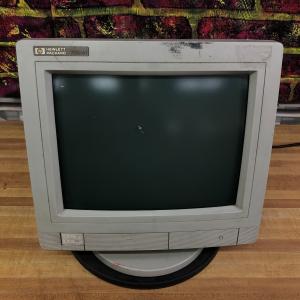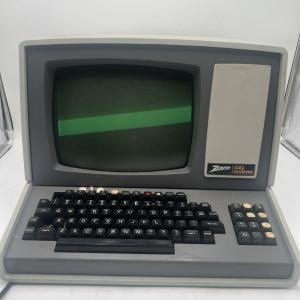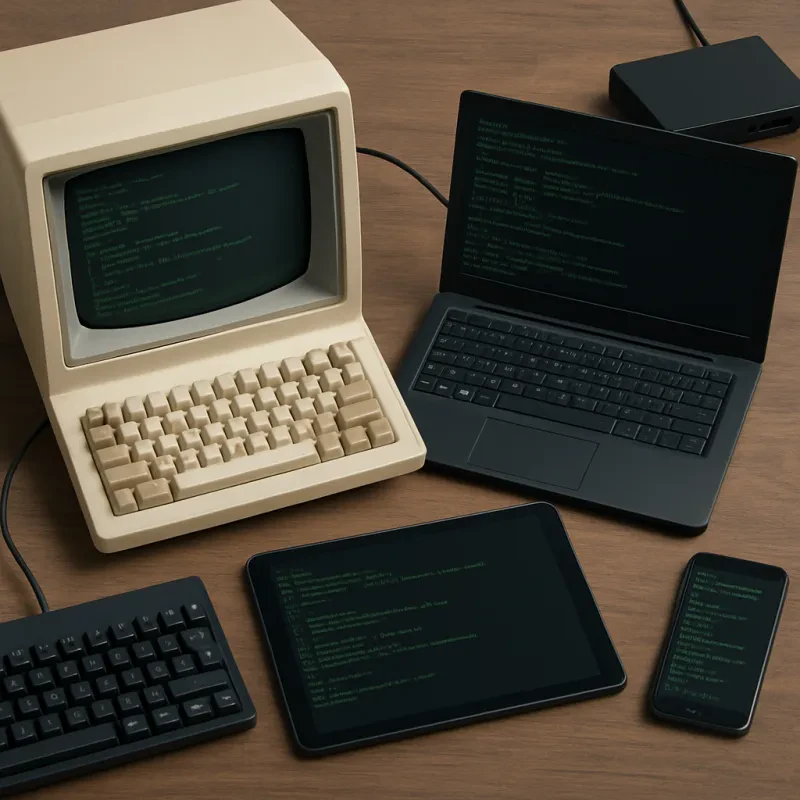
First things first, you’ll need to understand what a dumb terminal actually is. It’s a simple device that connects to a central computer or server, allowing you to send commands and receive output. Unlike smart terminals, dumb terminals don’t process data on their own. They rely entirely on the server to do the heavy lifting. That means you’ll be spending a lot of time in a command-line interface, which can be super powerful once you get the hang of it.
To get your feet wet, start by familiarizing yourself with the commands. Basic commands like ls (to list files) and cd (to change directories) will be your new best friends. You can easily find a cheat sheet online with common commands to help you memorize them. Practice typing and executing these commands to get comfortable. The more you practice, the easier it gets!
Don’t forget about connecting your dumb terminal to the server. You’ll usually do this via a serial cable or sometimes through a network connection. Check the documentation for specific instructions. Once you’re connected, you’ll want to log in with your credentials, and then you’re set to start using the terminal like a pro.
There’s a bit of a learning curve, but don’t let that discourage you. Think of it as learning a new skill that can really boost your efficiency. The world of how to use dumb terminals opens up lots of possibilities for working with data, managing systems, or even just running simple scripts. Stick with it, and you’ll be a wizard at it in no time!
Basic Commands for Beginners
If you're just getting started with dumb terminals, mastering a few basic commands will make your life a lot easier. It’s like learning the ABCs before you dive into reading. Here are some essential commands that every beginner should know.
1. Login: First things first, you gotta log in. Typically, you’ll see a prompt asking for your username. Just type your username and hit enter. Then, it’ll ask for your password. Type it in and hit enter again. Easy peasy!
2. Navigation Commands: Once you’re in, you'll want to navigate. Use the cd command to change directories. For example, if you want to go to a folder called "projects," just type cd projects and hit enter. To go back to the previous directory, use cd ... Simple!
3. File Management: Managing your files is another key task. Use ls to list files in your current directory. If you want to create a new file, type touch filename.txt. To delete a file, just type rm filename.txt. Remember, once it’s gone, it’s gone!
4. Getting Help: If you're ever stuck, don't panic. Just type man command to get help on any command. For example, man ls will give you all the details about the ls command. Perfect for when you're figuring out how to use dumb terminals.
Navigating Your Terminal Interface
The first step is understanding how to enter commands. Just type your instruction and hit the Enter key. You might start with basic commands like ls to list files or cd to change directories. It's all about getting comfortable with typing these commands without relying on a mouse or fancy graphics.
As you dive deeper into the world of terminals, you’ll learn about flags and options that enhance commands. For example, ls -l gives you a more detailed view of files. These little tweaks can save you time and help you manage files more efficiently. Experimenting with commands helps you figure out what works best for your workflow.
Don’t forget that help is just a command away. If you’re unsure about a particular command, typing man [command] will pull up the manual for that command. It’s like having a trusty guide at your fingertips. This is one of the best parts about knowing how to use dumb terminals: you can always learn and improve as you go along.
Tips for Troubleshooting Issues
Troubleshooting issues with dumb terminals can feel a bit daunting, but it doesn’t have to be. Here are some practical tips to help you get back on track quickly!
1. Check Connections: Make sure all cables are securely connected. Loose or damaged cables are often the culprit behind many connection issues. A simple wiggle might solve the problem!
2. Power Cycle: Sometimes, just turning the terminal off and on can refresh its memory and resolve glitches. Give it a minute before you power it back up. This simple step can often fix minor issues.
3. Test with Another Device: If you suspect a problem, try connecting the terminal to a different device. This helps you figure out if the issue is with the terminal itself or another part of your setup.
4. Review Settings: Misconfigured settings can lead to problems. Double-check your terminal configuration. Make sure the baud rate and communication settings match those of the connected device for seamless interaction.
When you know how to use dumb terminals effectively, troubleshooting becomes less of a hassle. Follow these tips, and you’ll be back to working smoothly in no time!